Printing Estimates
Stratus provides multiple options for downloading returns, schedules, and reports available in the software.

Download Icon
In Stratus, a Download option is used instead of a print icon. You may download the item currently displayed in the active window by clicking the Download icon on the right side of the screen.
When used on an open return, the Download icon generates a PDF of the active return itself. It does not include the Payment Request or attachments.
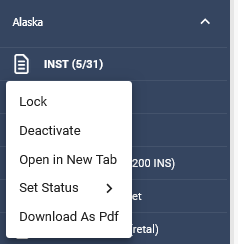
Right Click Download
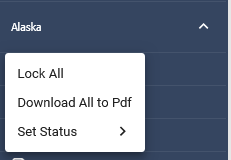
Returns and jurisdictions can also be downloaded using the right-click menu. Highlight the desired return(s) or jurisdiction(s), right-click, and select Download as PDF or Download All to PDF.
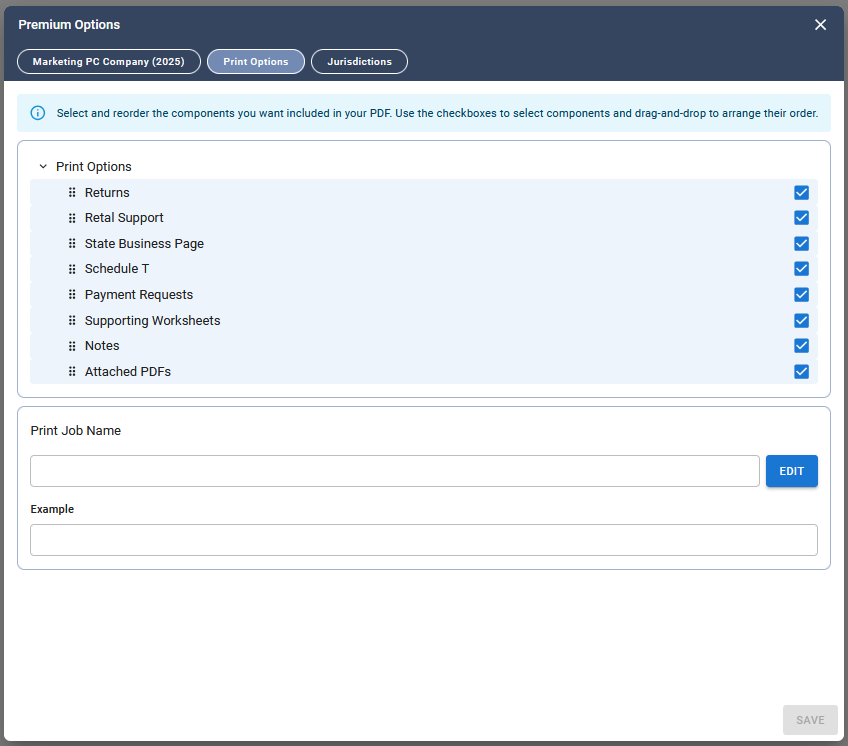
To generate a PDF that includes additional items, such as the Payment Request, supporting schedules, notes, or attachments, use the right-click download option. The generated PDF follows the selections and order configured in Print Options.
Print Options
Premium Options
The Premiums Options window can be opened by clicking on the gear icon in the upper right-hand section of the web page. This window has three tabs that let you set company-specific options for a given tax year.
Please Note: If you make changes to the options on any of the tabs, the Save icon in the bottom right-hand corner of the window will turn blue. You must save your changes before navigating out of this window.
Print Options
The Print Options tab allows you to choose which pages to include when printing a return and to customize the order in which they appear. Use the checkboxes on the right side of the tab to include or exclude specific pages from the PDF. To change the page order, click the dots icon to the left of a page name and drag it to the desired position.
Print Job Name
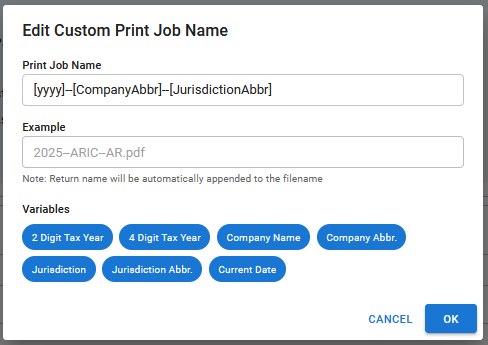
The Print Job Name section on the Print Options tab allows you to customize the name that will be assigned to generated print jobs.
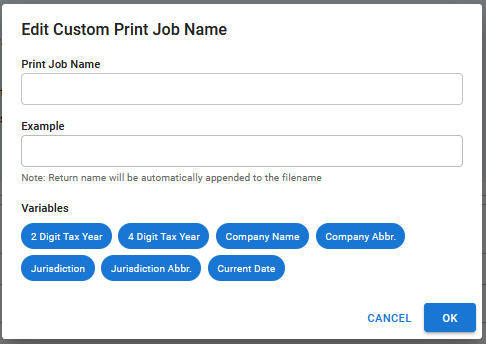
To edit the Print Job Name, click the Edit button located on the right side of the Print Job Name section. A window will open displaying the available variable options, such as 2-Digit Tax Year, 4-Digit Tax Year, Company Name, Jurisdiction, and others.
Select the desired variables and click OK. As variables are selected, a preview example will display below to show how the print job name will appear.
After making your selections, click Save on the Print Options tab. The Save button is located in the bottom right-hand corner of the window. Your changes must be saved before navigating away from the tab.
Related Articles